A tour of the screens

Pick a capability and click the steps; click an image to enlarge it. Screens are shown with sample data; the application interface is in Turkish.

EMS · SETUP
SETUP — Define the organization
SETUP · Explore

Screens are shown with sample data; the application interface is in Turkish.

SETUP · Set up

Organization and Industry Setup

Define the organization, choose the industry, open the recommendations.
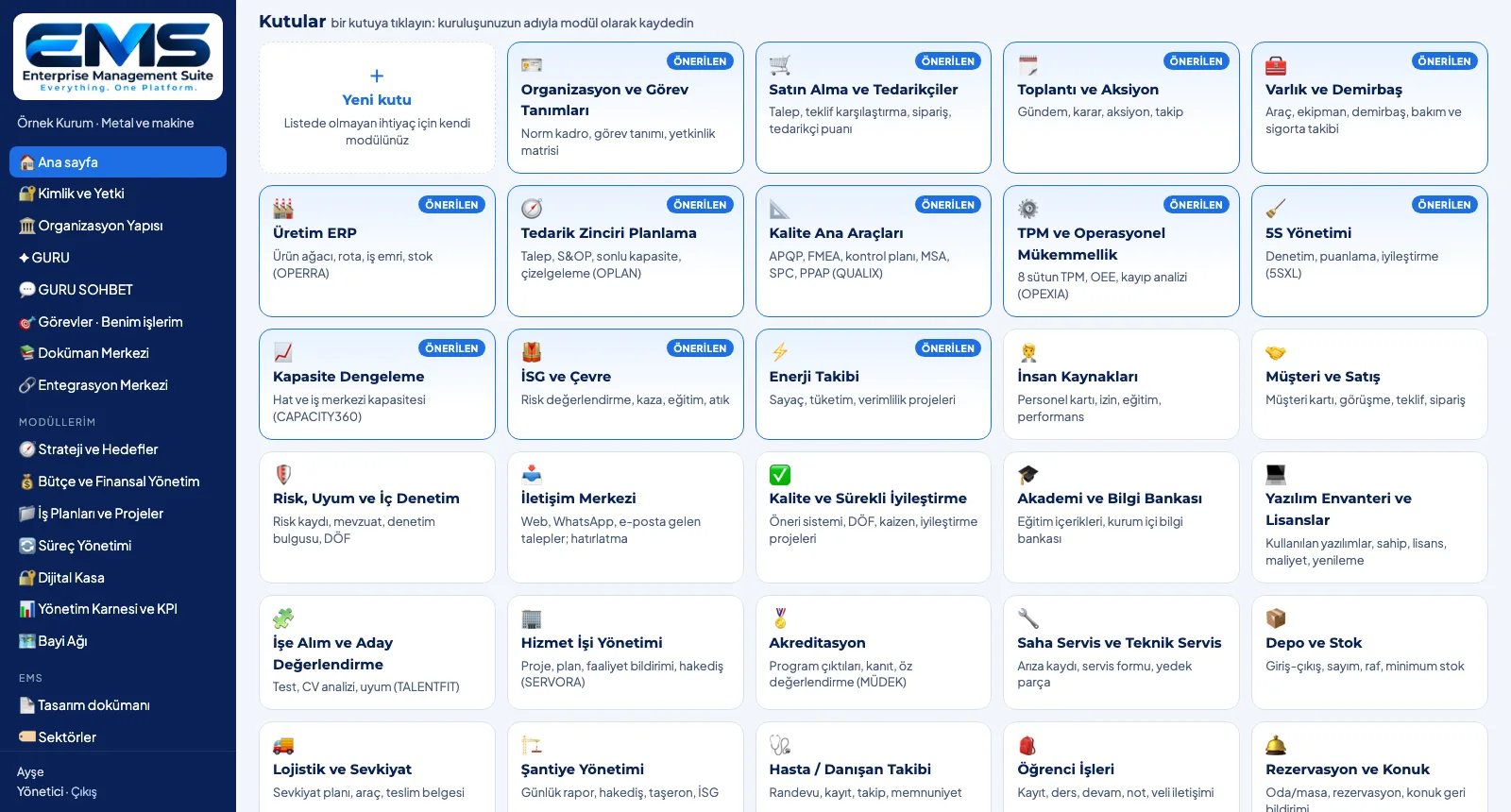
SETUP — Define the organization
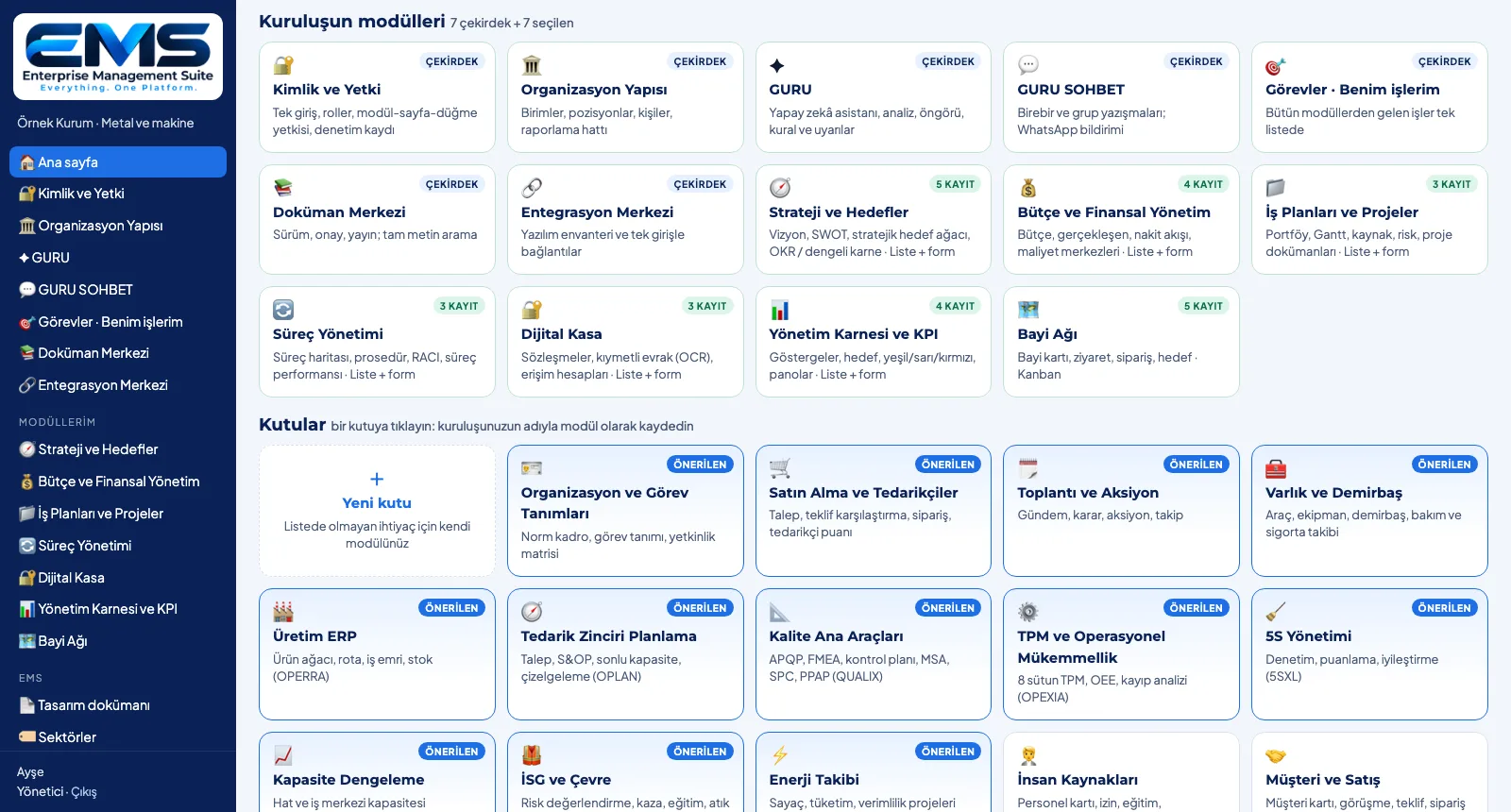
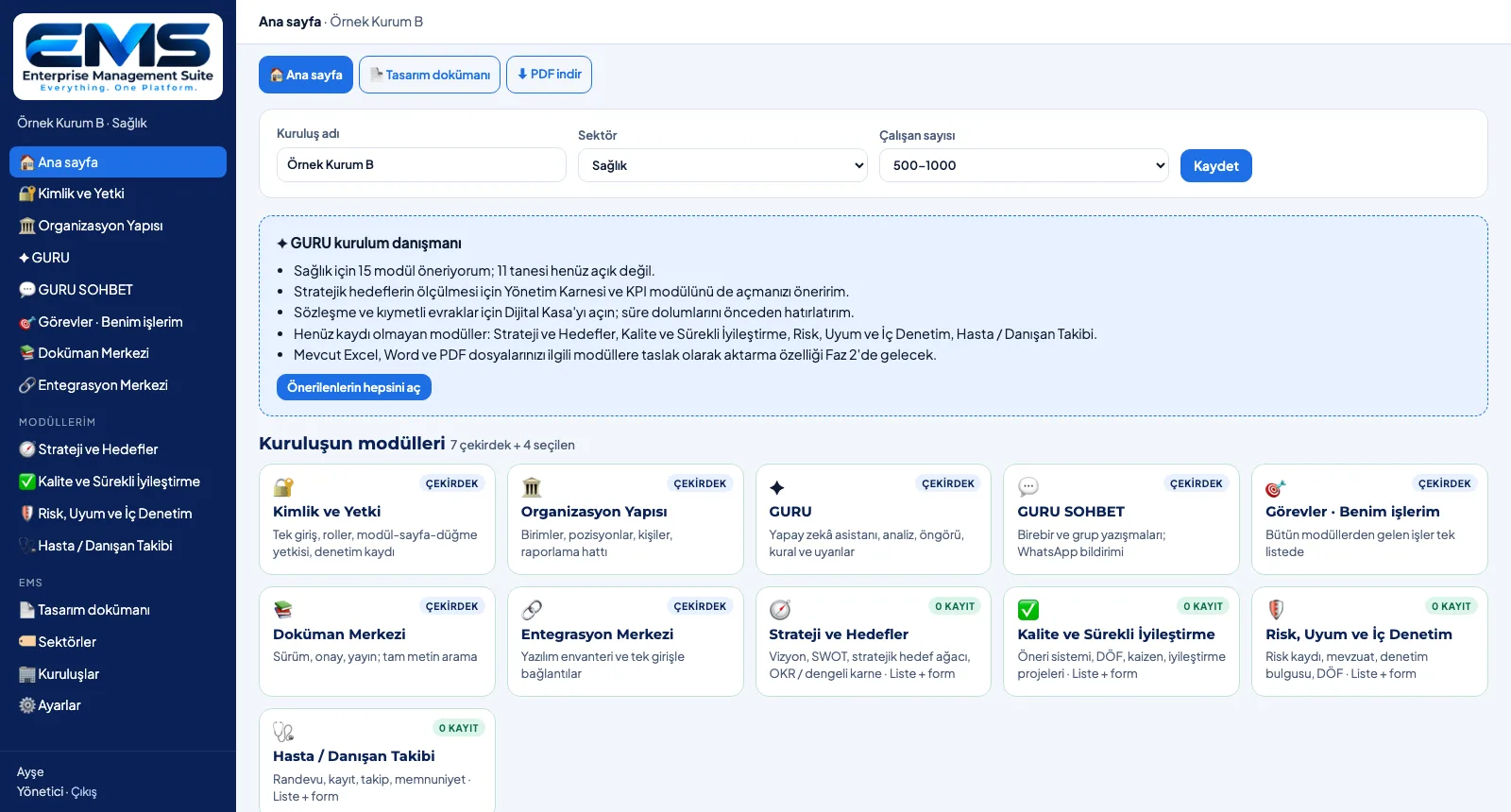
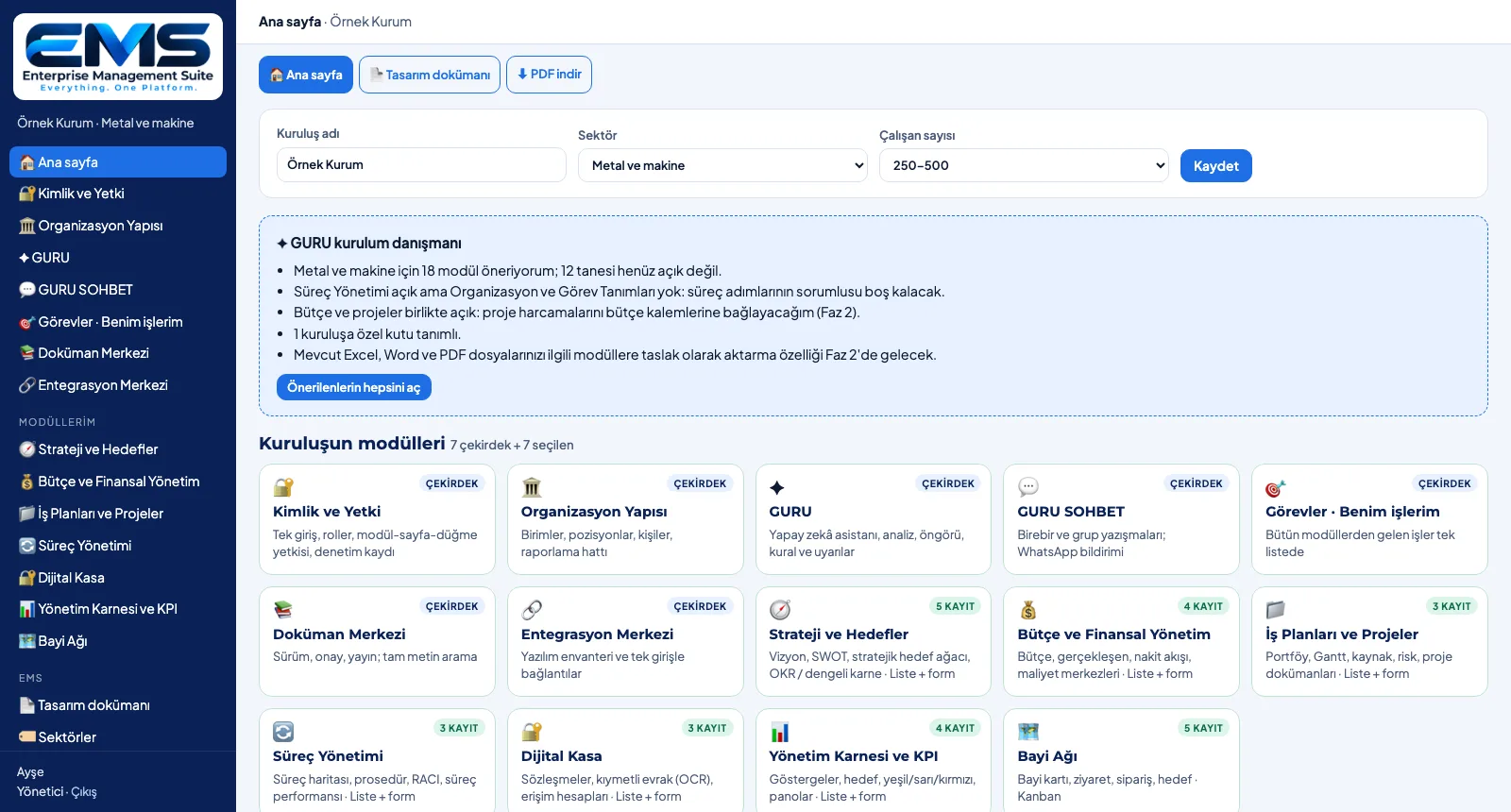
1. Define the organizationOn the home page you save the organization name, industry and headcount; core and selected modules are listed right below.
SETUP — See the recommendations
2. See the recommendationsBoxes recommended for the industry come first with a "recommended" badge; Open all recommendations turns them all into modules at once.
SETUP — Document the setup
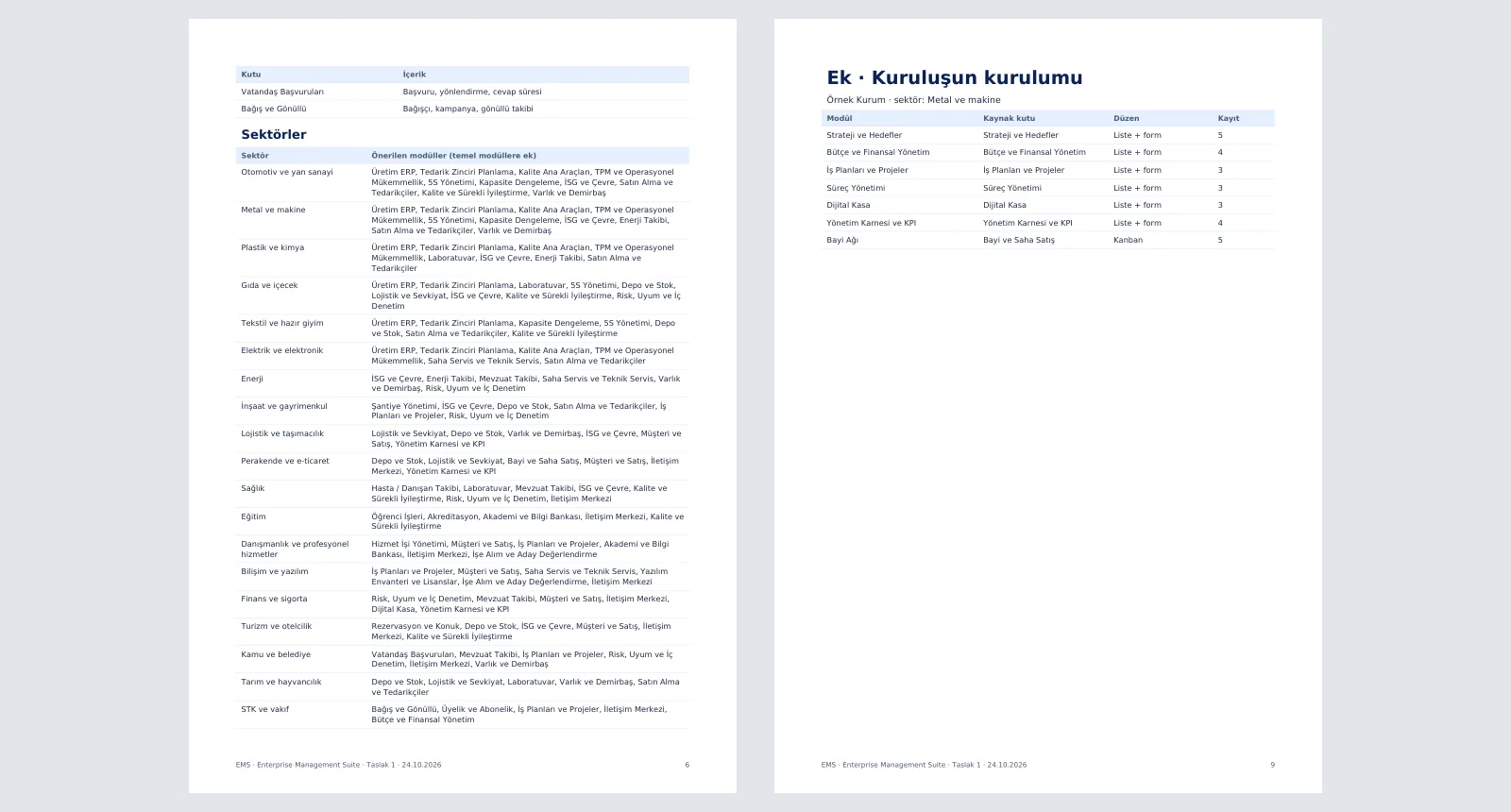
3. Document the setupThe design document downloads as a PDF with the organization annex: industry, opened modules, source boxes, layouts and record counts.

SETUP · Explore

CATALOG · Choose

Module Catalog

Get to know the layers, review the catalog.
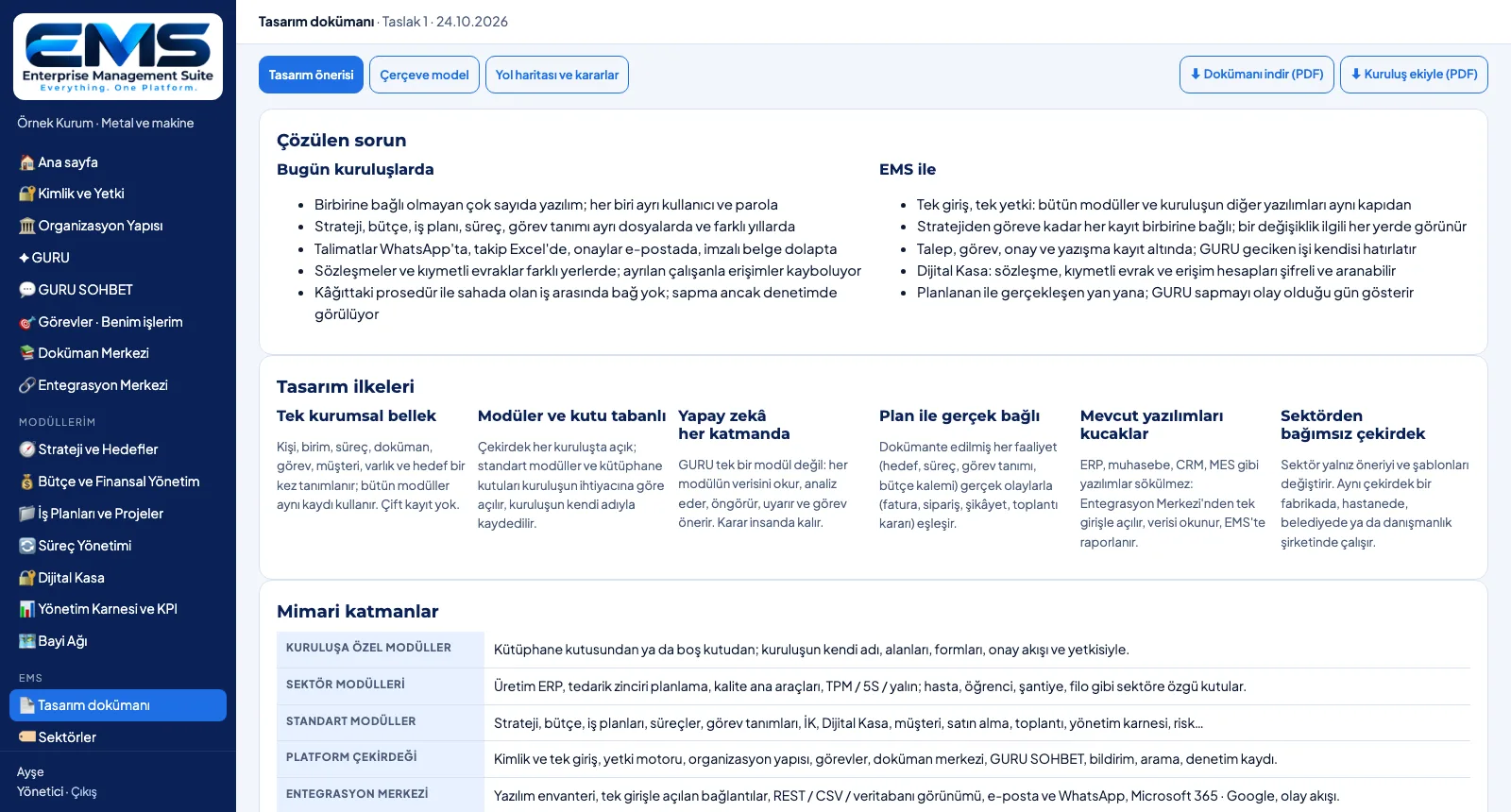
CATALOG — Core and modules
1. Core and modulesThe organization's modules section shows the 7 core modules and the modules opened by the organization, with record counts.
CATALOG — Read the design
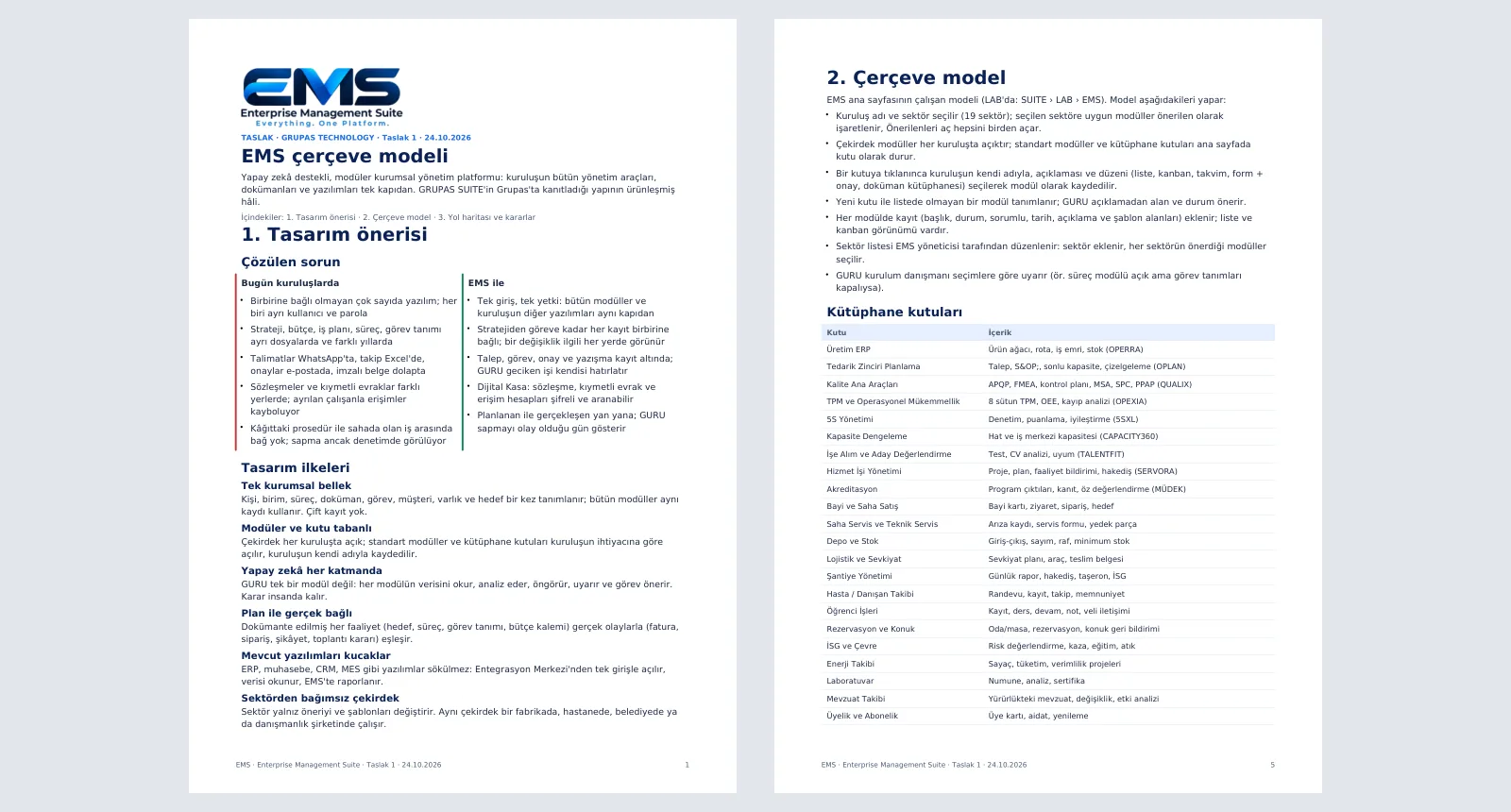
2. Read the designThe design document explains the problem solved, the design principles and the architecture layers inside the application.
CATALOG — Download the catalog
3. Download the catalogThe same document downloads as a PDF: framework model, library boxes and each industry's recommended modules in tables.

CATALOG · Explore

BOX · Adapt

From Box to Your Own Module

Pick the box, name it, adapt it.
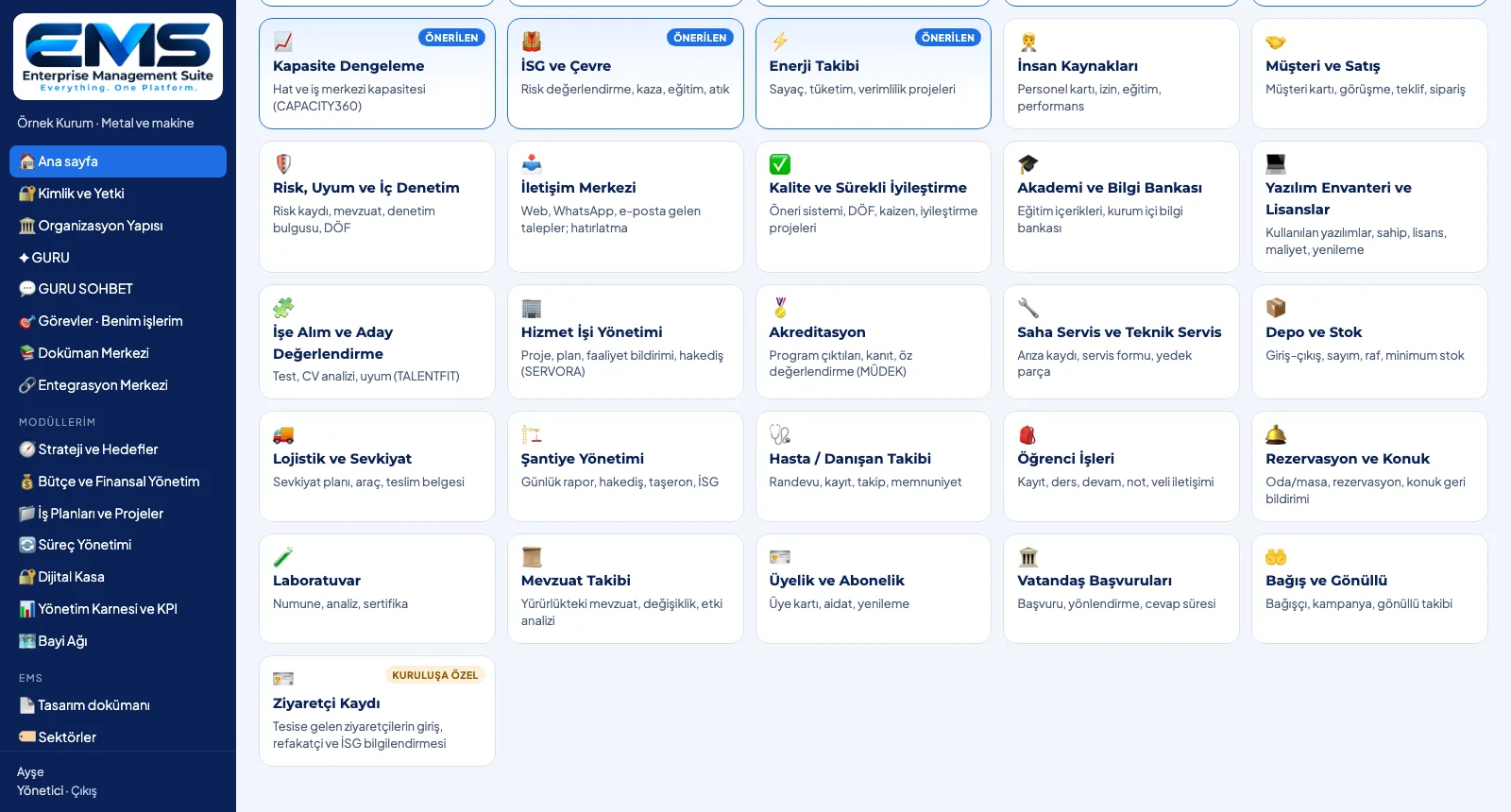
BOX — Turn a box into a module
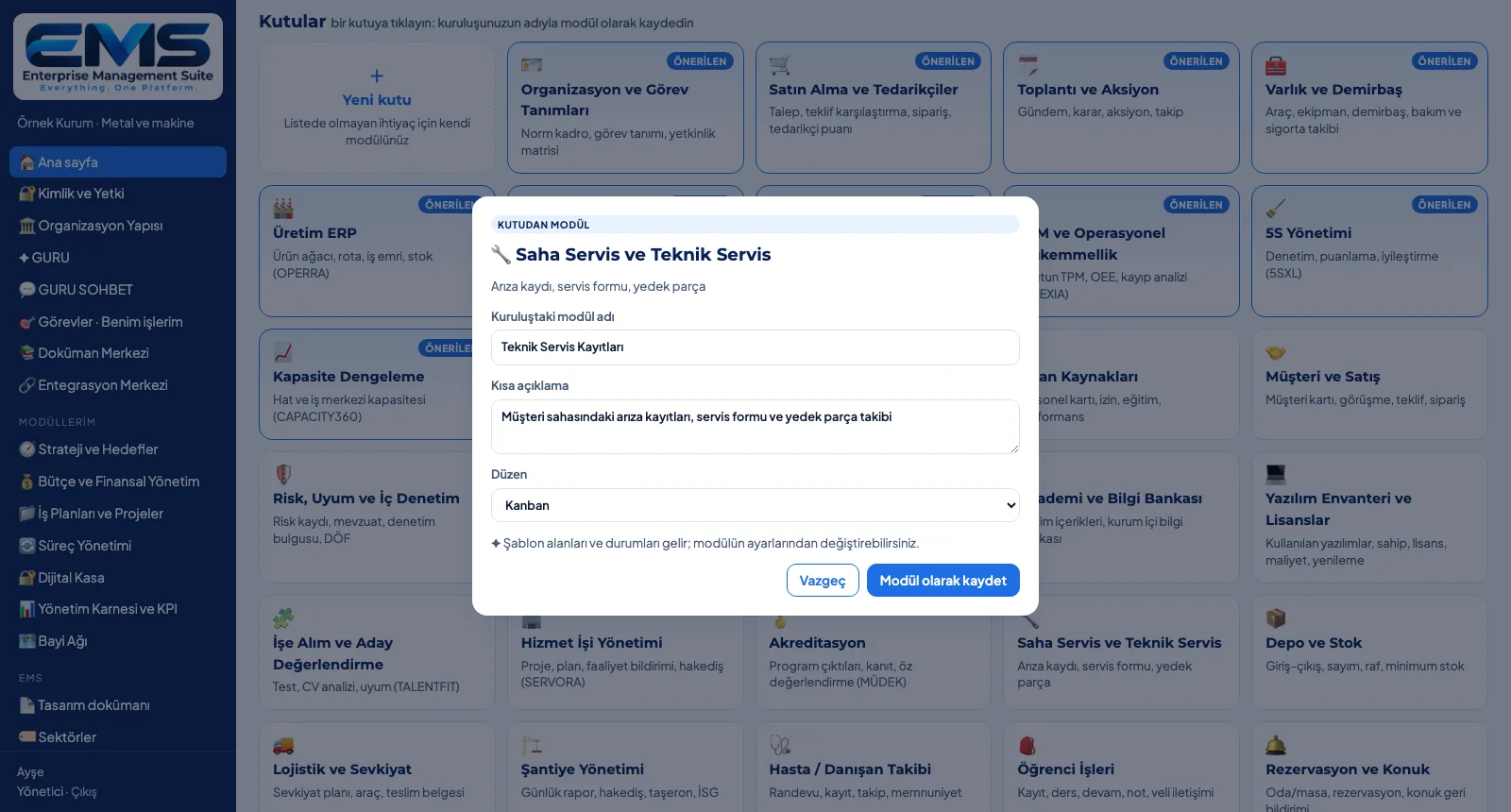
1. Turn a box into a moduleThe Field Service box is saved as "Technical Service Records" in the organization, with its own description and a kanban layout.
BOX — Organization-specific box
2. Organization-specific boxNext to the industry boxes, the library also holds boxes the organization defined itself, e.g. Visitor Log.
BOX — Adapt the module
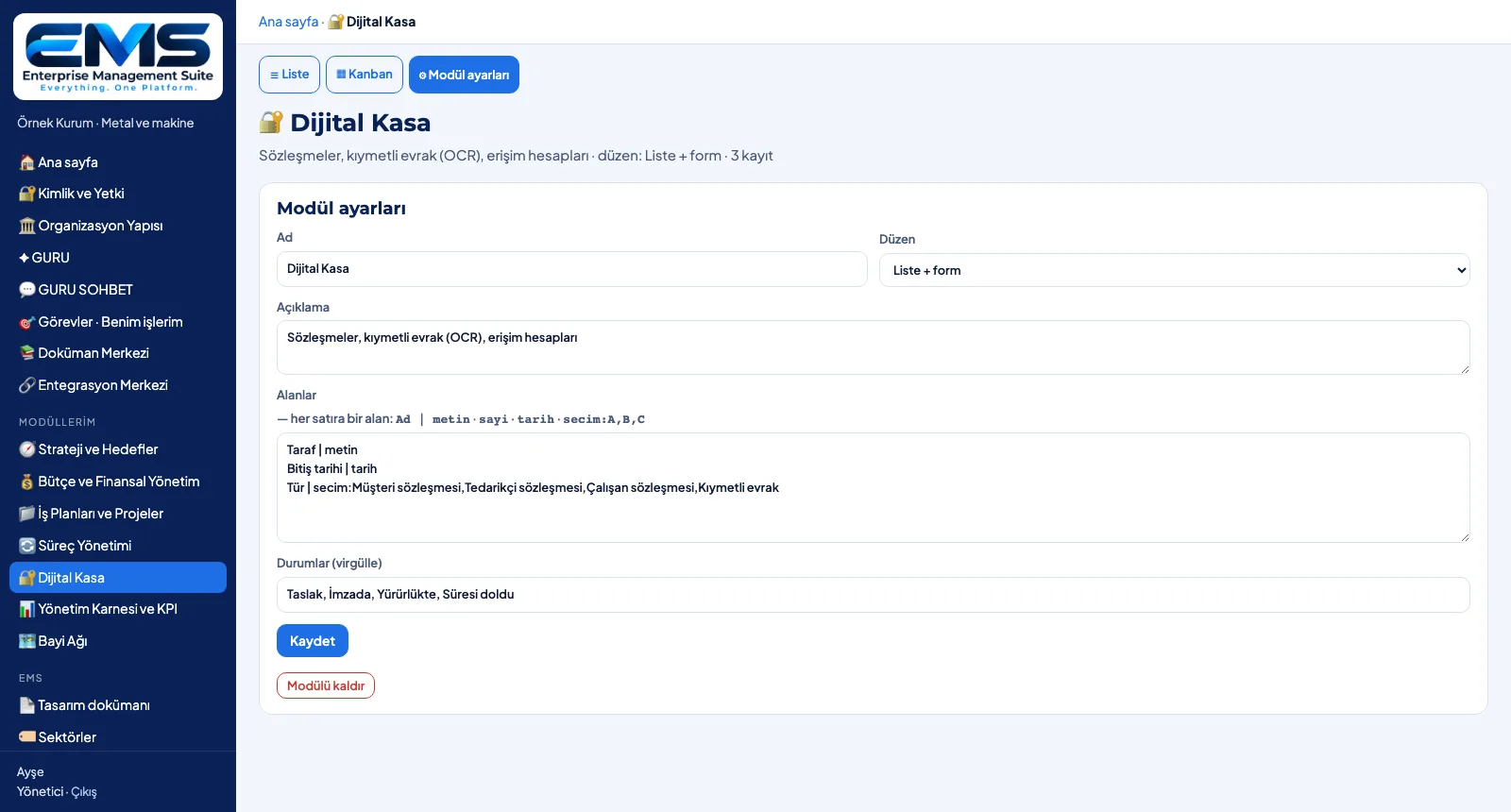
3. Adapt the moduleModule settings change the name, description, layout, fields (one field per line) and statuses; the module can be removed.

BOX · Explore

RECORD · Track

Module Records: List and Kanban

Add the record, track it in the list, move it on the kanban.
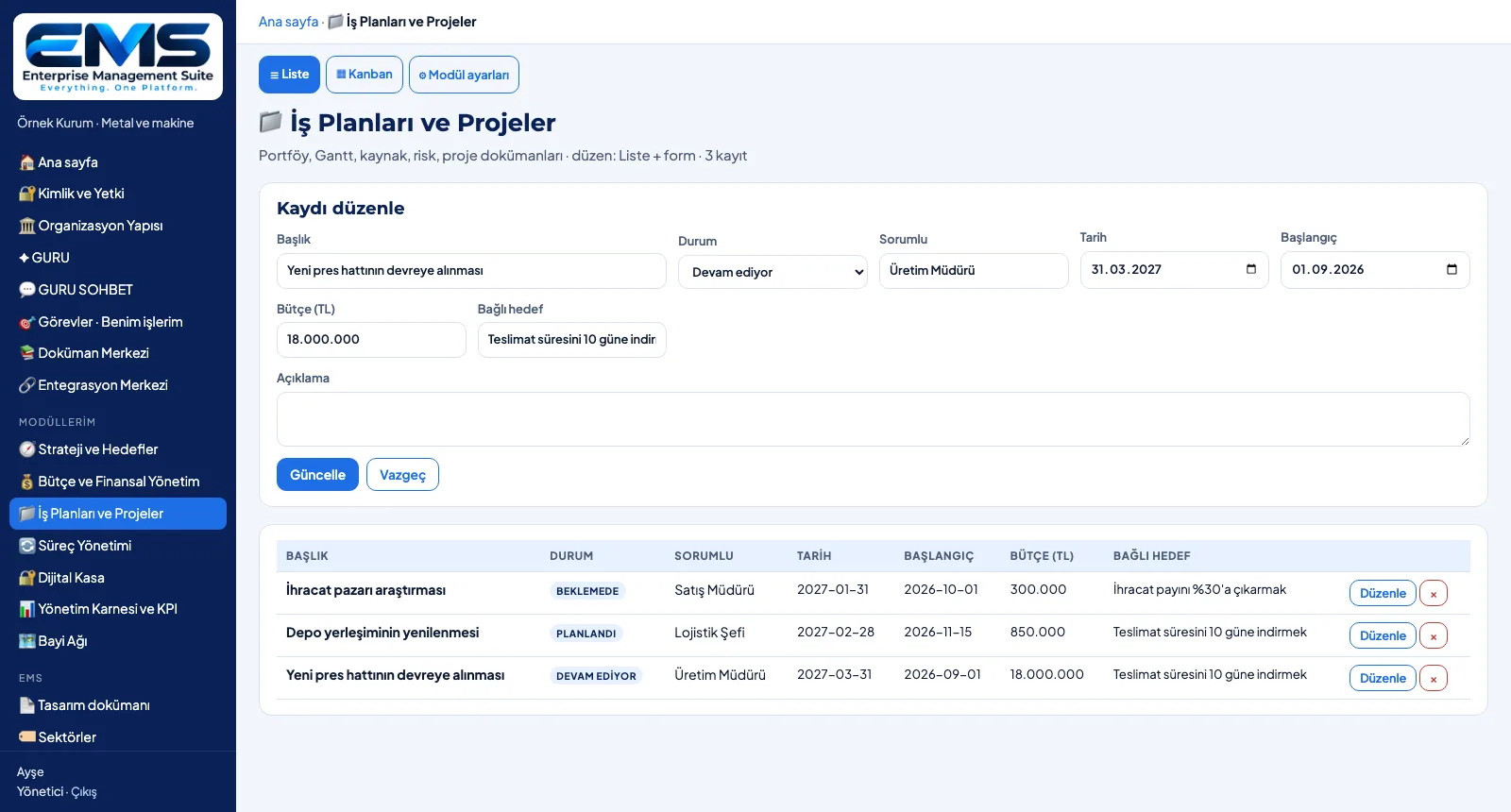
RECORD — Track in the list
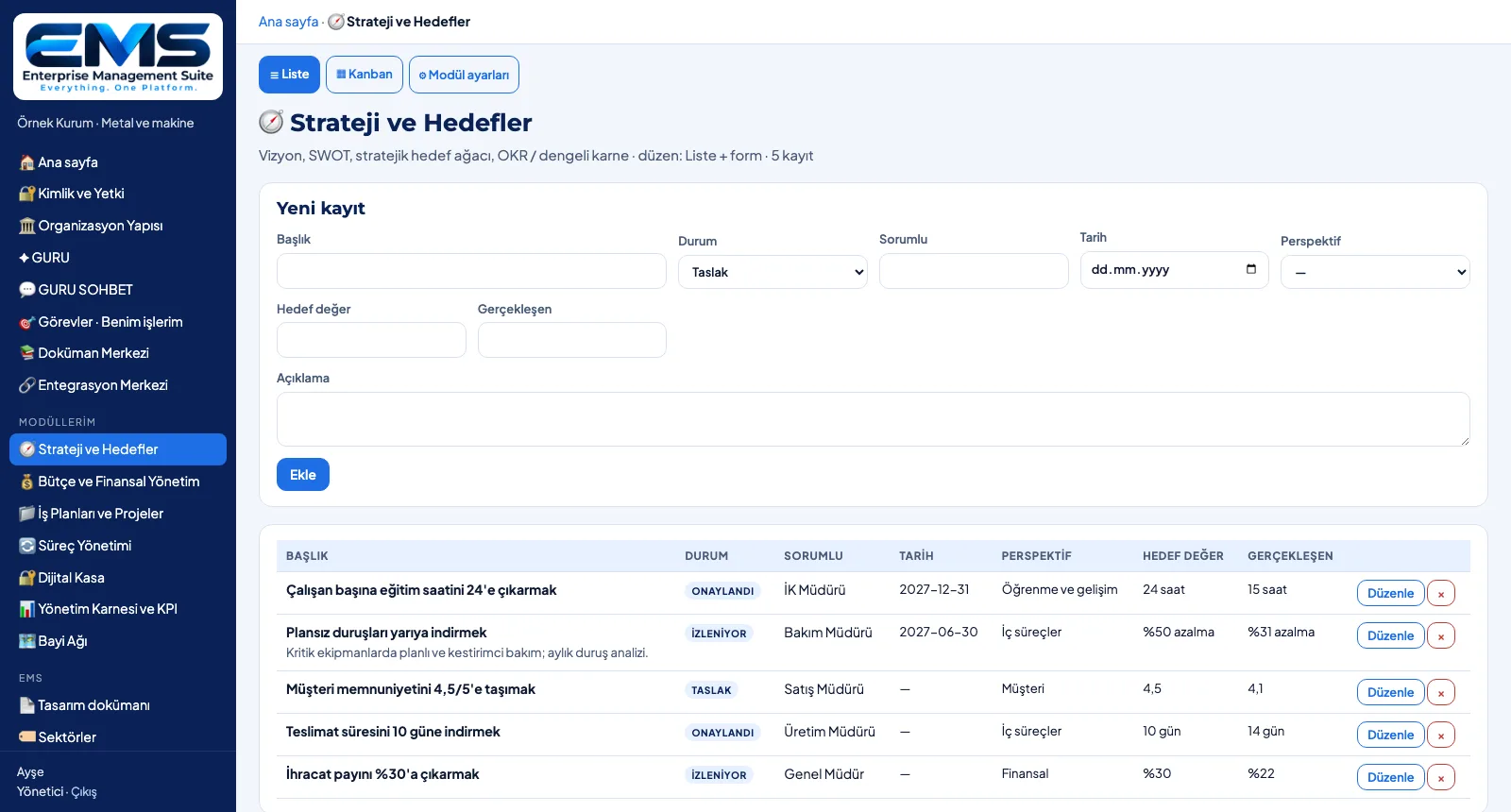
1. Track in the listIn the Strategy and Objectives module each objective sits on one line with its perspective, target value and actual.
RECORD — Update a record
2. Update a recordEdit opens the record in the form; in projects, template fields such as start date, budget and linked objective are updated too.
RECORD — Move on the kanban
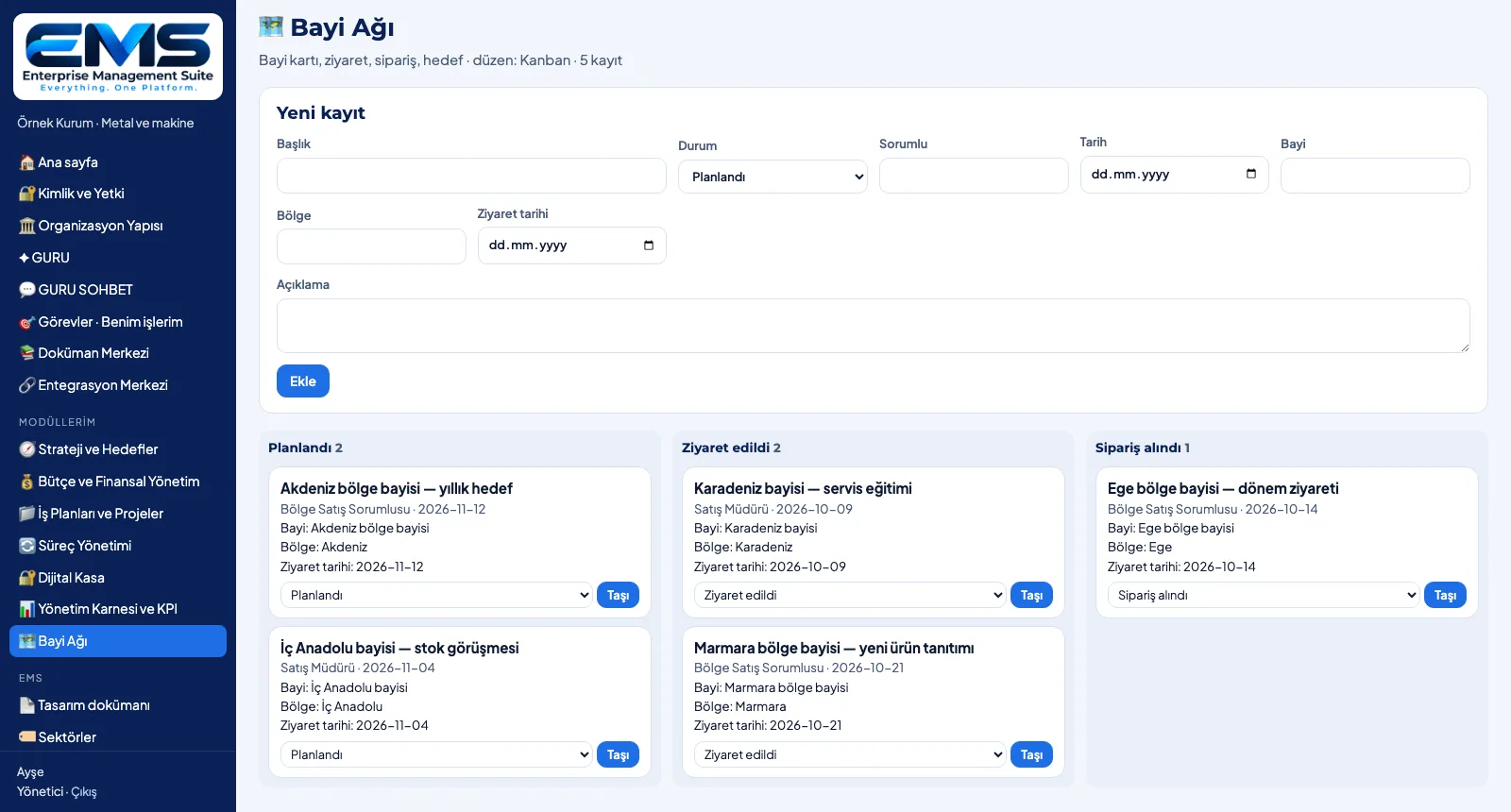
3. Move on the kanbanIn the Dealer Network module visits sit in Planned, Visited and Order received columns; Move changes the status.
RECORD — Watch the indicators
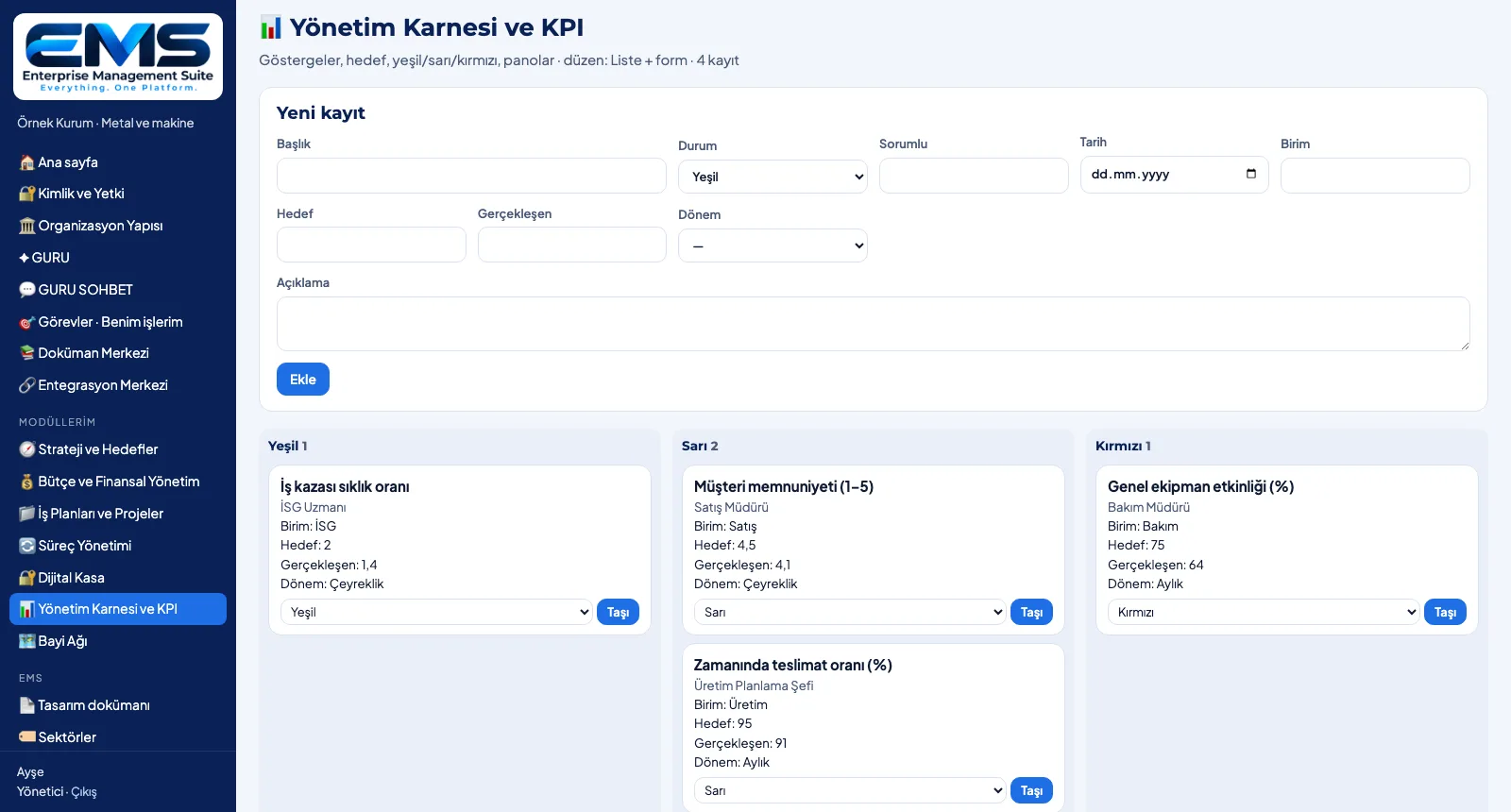
4. Watch the indicatorsIn the Management Scorecard and KPI module, indicators appear with unit, target, actual and period in green / amber / red columns.

RECORD · Explore

ADMIN · Govern

Organizations, Industries and Access

Set up organizations, define industries, follow the changes.
ADMIN — Manage organizations
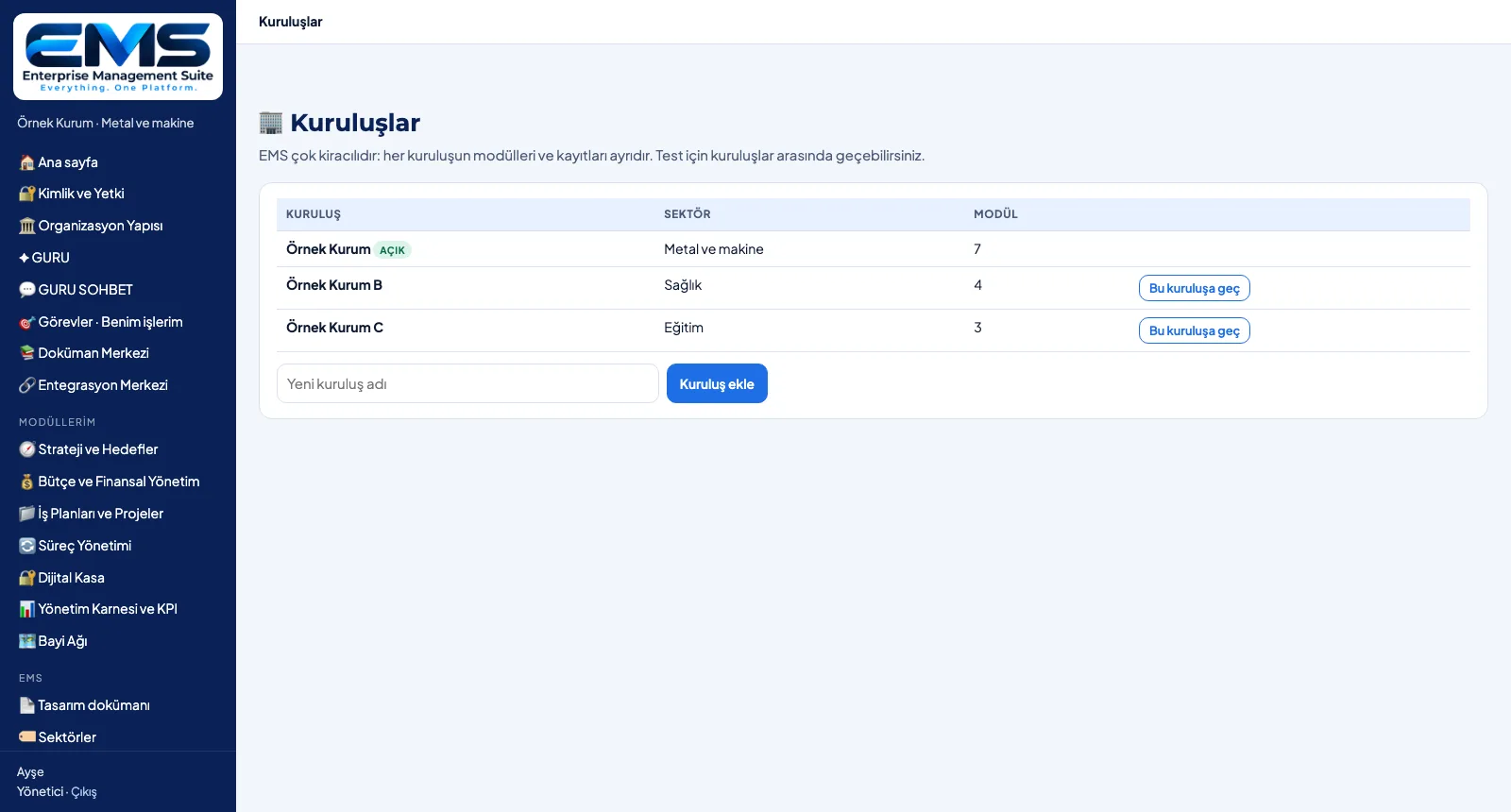
1. Manage organizationsThe Organizations page lists each organization with its industry and module count; add a new one or switch to it.
ADMIN — Define industries
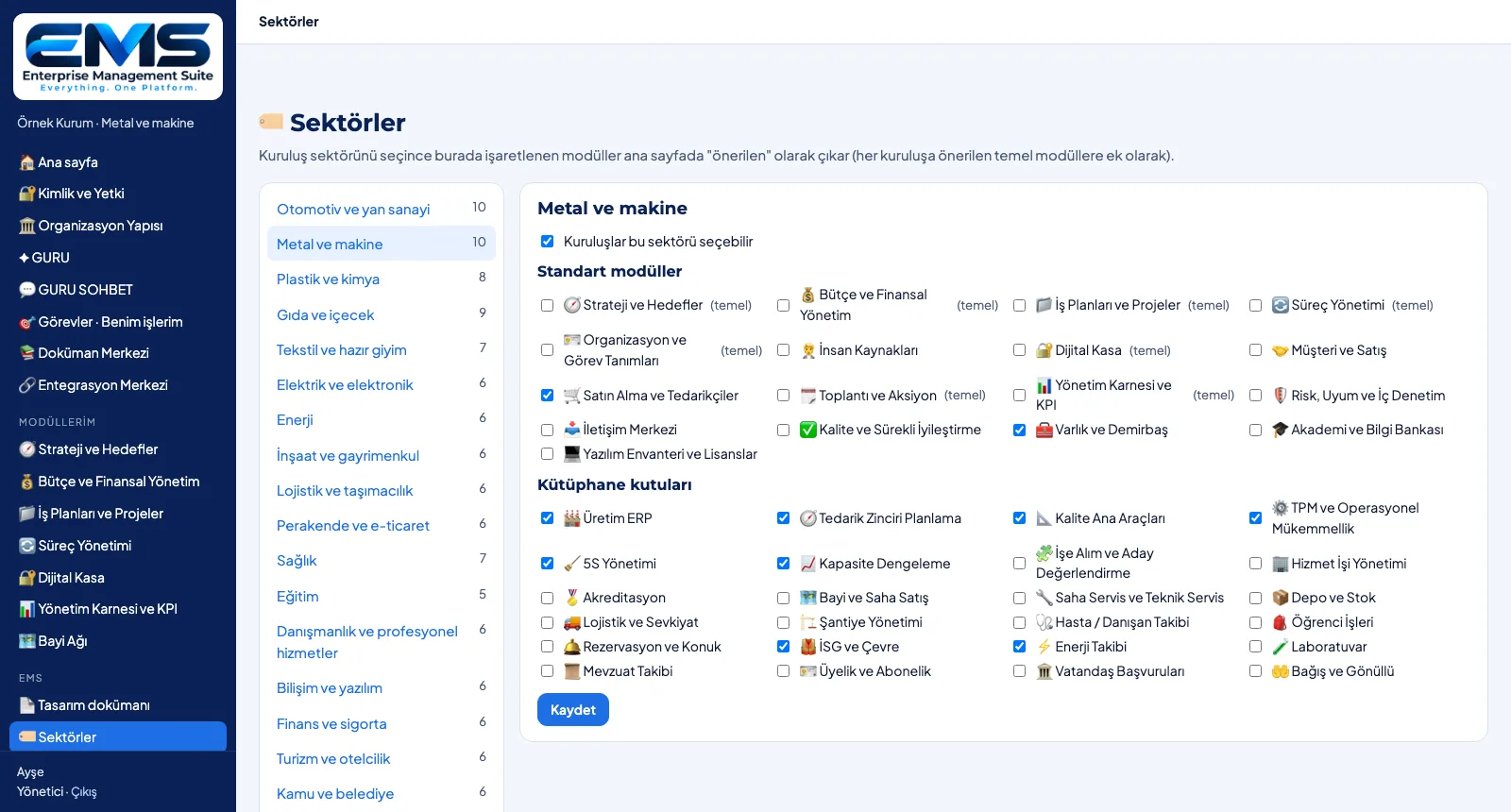
2. Define industriesFor each industry you tick the recommended standard modules and library boxes; core recommendations are flagged.
ADMIN — Follow the changes
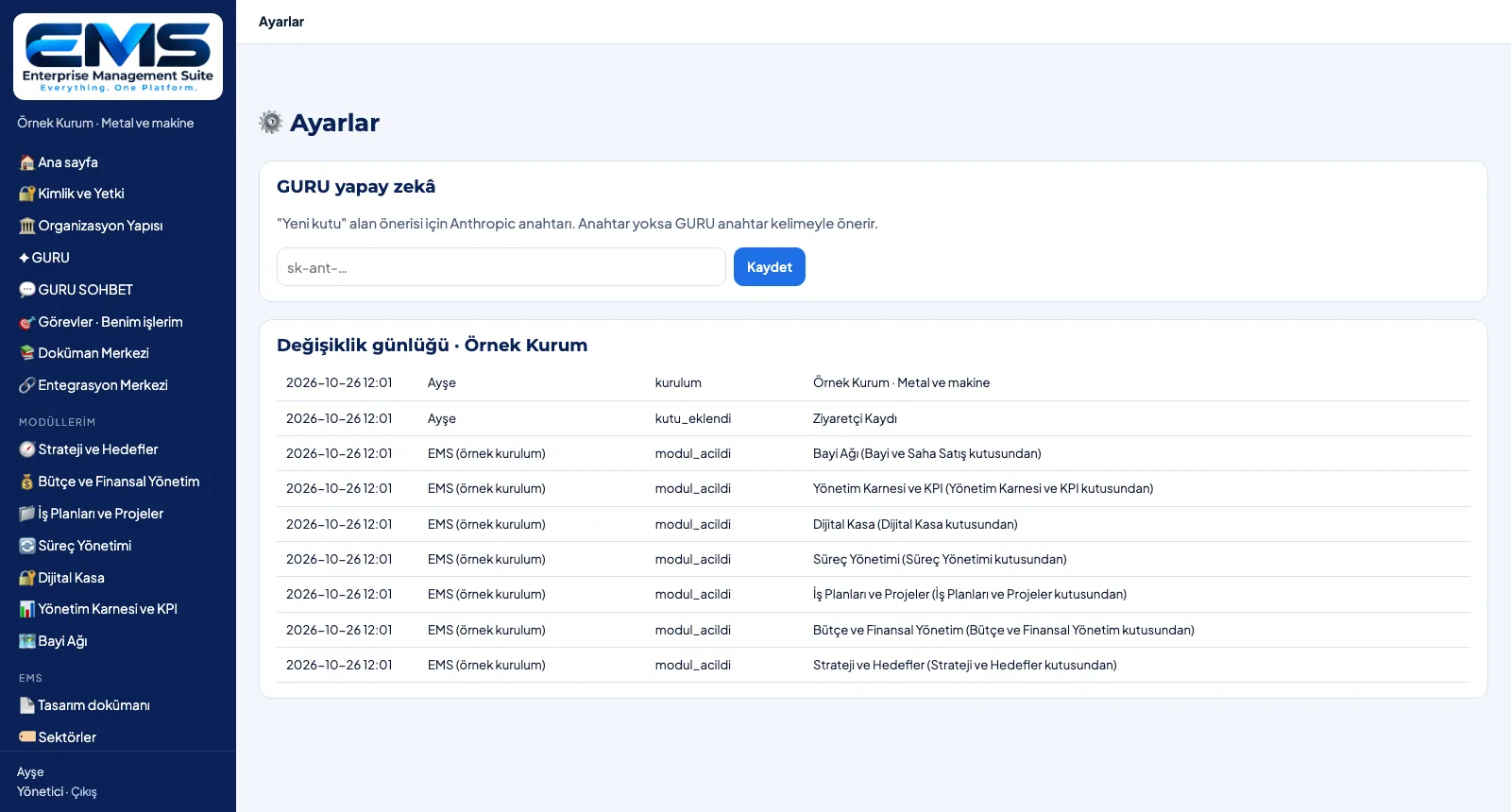
3. Follow the changesThe Settings page holds the GURU key and the organization's change log: who opened which module or added which box, and when.

ADMIN · Explore

GURU · Consult

GURU AI

Read the advisor, get a field suggestion, make the call.
GURU — Read the advisor
1. Read the advisorIn a sample healthcare setup, GURU reports that 11 of the 15 recommended modules are not yet open and lists modules with no records.
GURU — Get a field suggestion
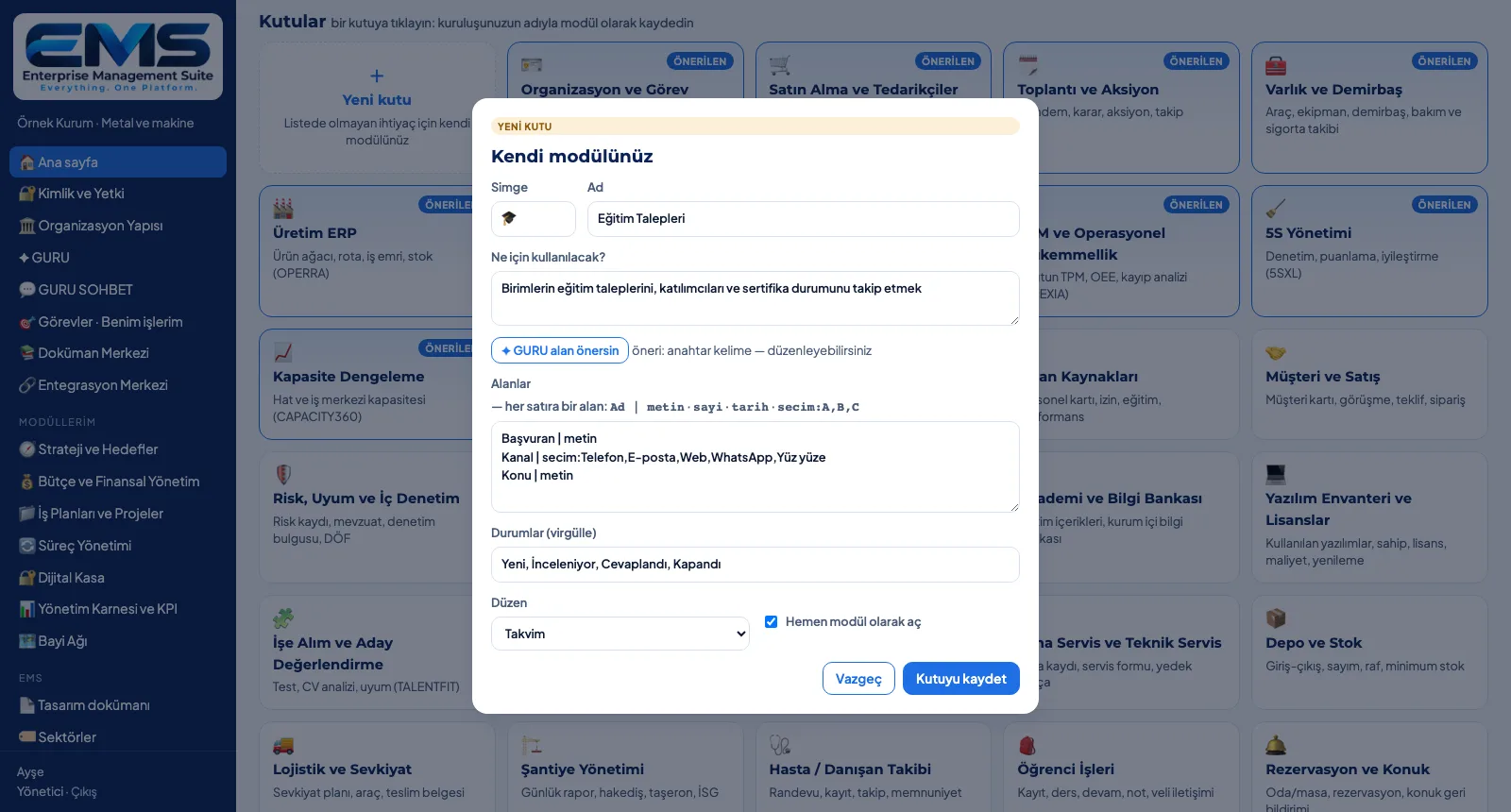
2. Get a field suggestionEnter a name and purpose for the new box and click GURU, suggest fields: fields and statuses fill the form, with the source alongside.

GURU · Explore

See your organization in EMS

Write to us for a live walkthrough on a sample setup for your industry.

WhatsApp
GURU

GURU · EMS assistant

Ask about features, modules and licenses.

+90 538 390 29 78 info@grupas.com.tr
Hi, I'm GURU! I can answer your questions about EMS (module recommendations by industry, core and standard modules, boxes, records, access rights).