Six capabilities, one platform
EMS is one platform: every capability comes with every license; we define the module scope together. EMS capabilities follow the natural order of a setup: set up the organization, choose the modules, adapt the boxes, manage the records, govern organizations and access, consult GURU.
Organization and Industry Setup
Choose your organization and industry — EMS marks the modules that fit you.
Explore ChooseModule Catalog
7 core modules, 17 standard modules and 24 library boxes in one catalog.
Explore AdaptFrom Box to Your Own Module
Pick a box and save it as a module under your own name; if it isn't listed, create a new box.
Explore TrackModule Records: List and Kanban
Records in every module: title, status, owner, date and the module's own fields — as a list or a kanban.
Explore GovernOrganizations, Industries and Access
Multi-tenant structure, a manageable industry list, three access levels and a change log.
Explore ConsultGURU AI
GURU guides the setup and suggests the fields of a new box — the decision stays with you.
ExploreOrganization and Industry Setup
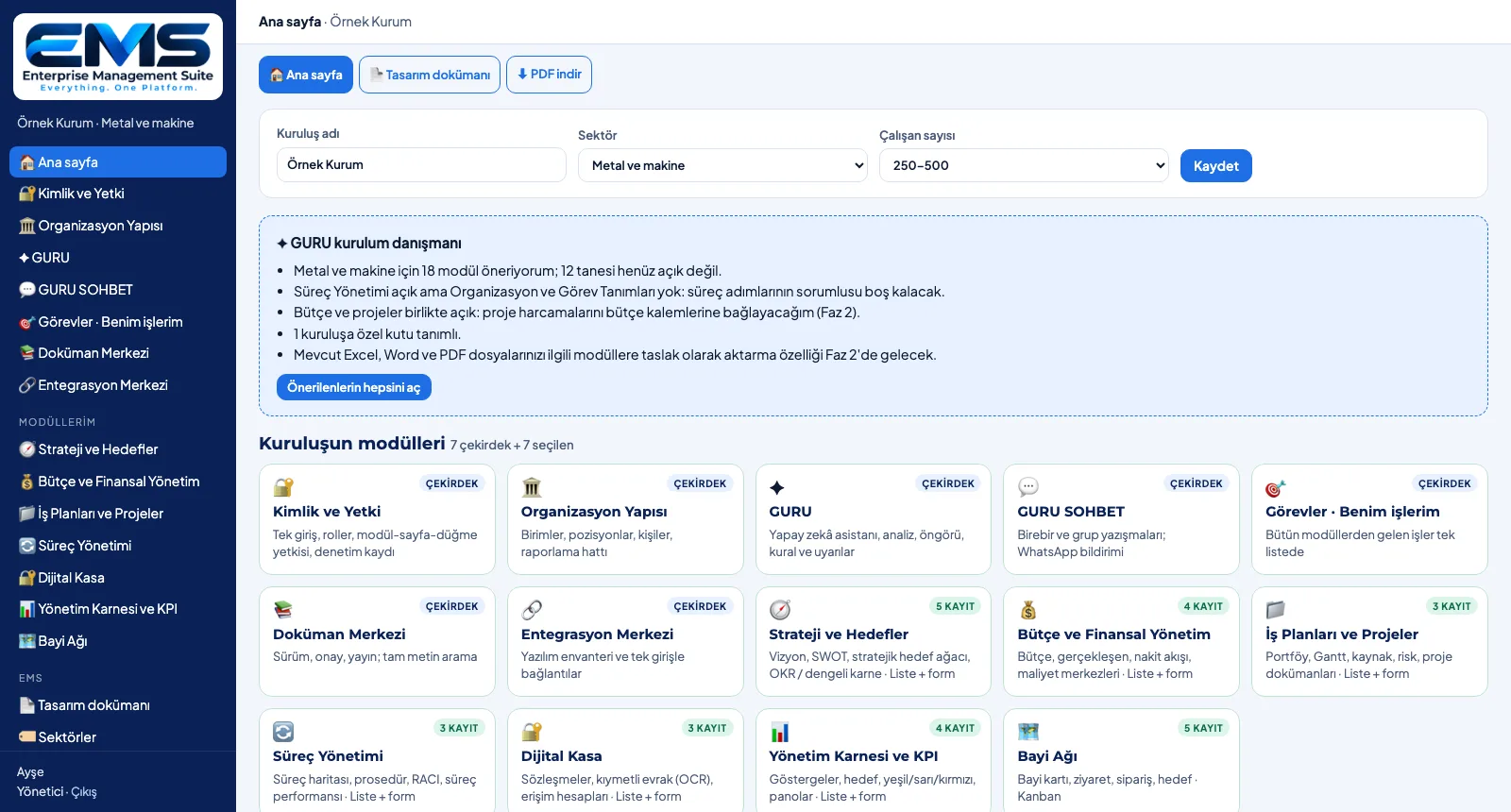
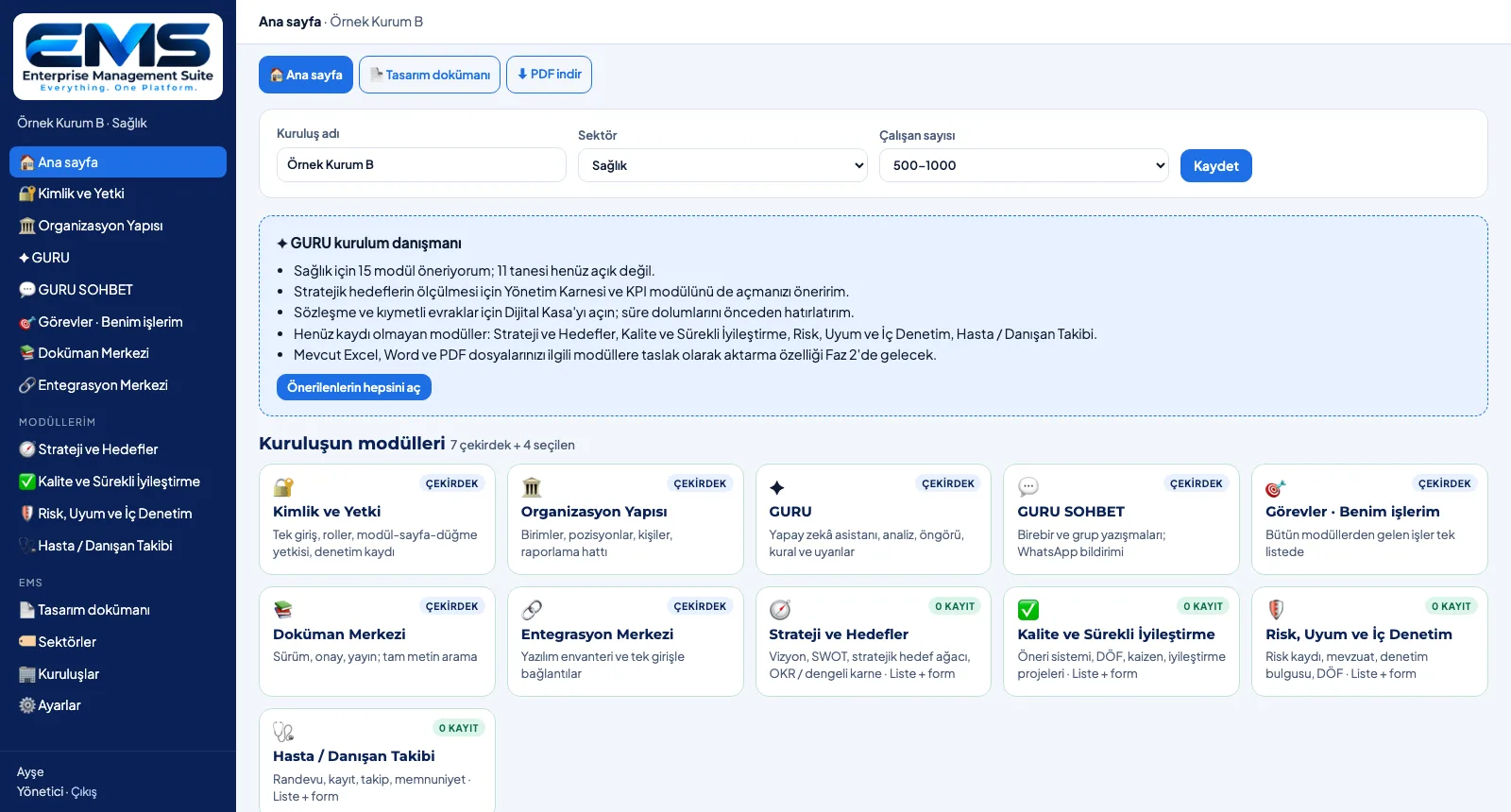
To start with EMS you enter the organization's name, industry (19 industries) and headcount. The modules recommended for that industry, together with the 8 core recommendations made to every organization, are marked as "recommended" on the home page and move to the top of the boxes. All recommendations can be opened in one click; the choice always stays with the organization.
- Organization card: name, industry and headcount (1–49 … 1000+)
- 19 industries: from automotive to healthcare, from education to public sector and NGOs
- 8 core module recommendations for every organization + the industry's recommended modules
- "Recommended" badge, recommended boxes first; open all recommendations
- Setup summary PDF: the organization's modules, source boxes, layouts and record counts
Module Catalog
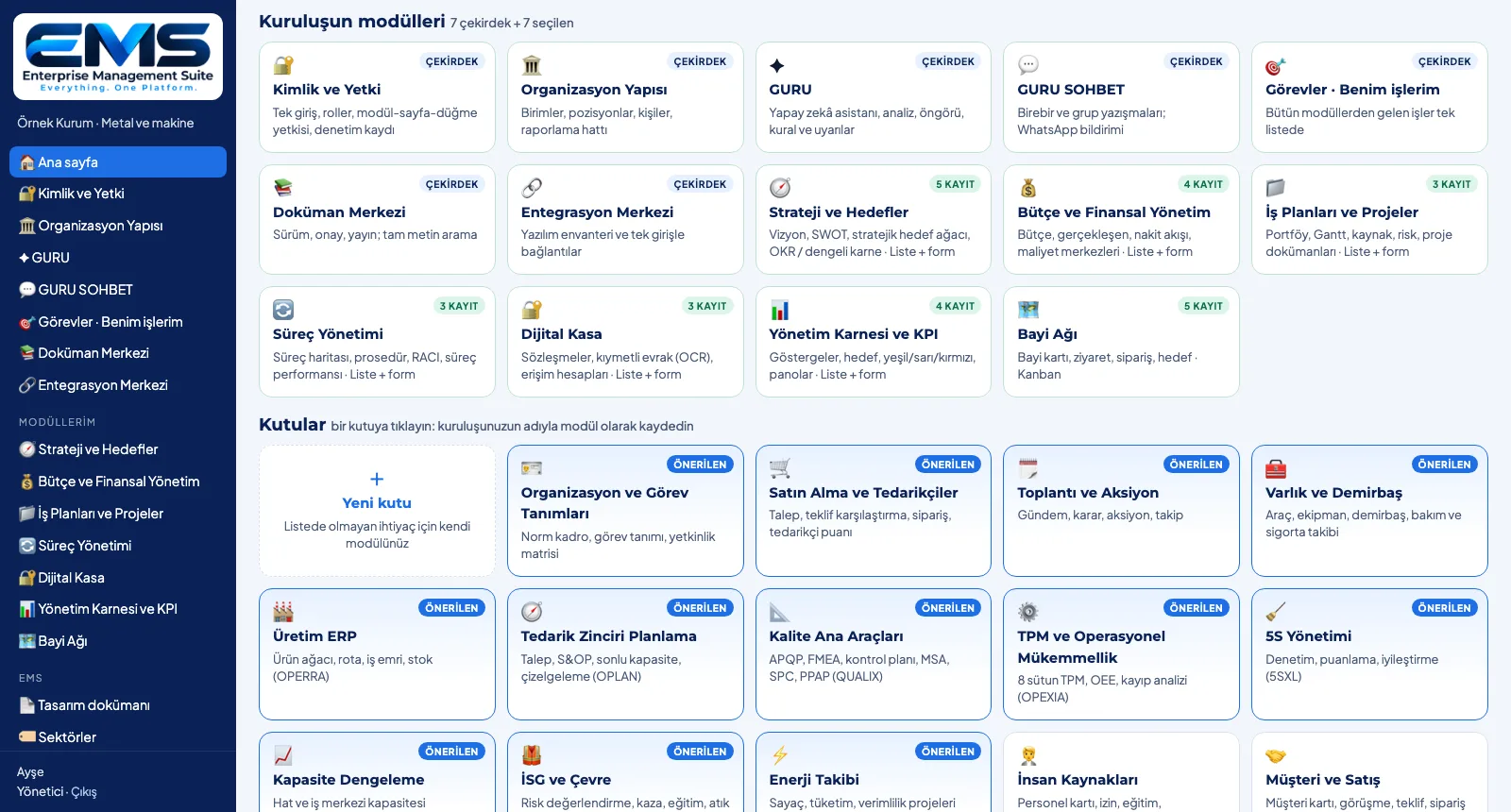
EMS modules sit in three layers. Core modules are open in every organization: Identity and Access, Organization Structure, GURU, GURU CHAT, Tasks, Document Center and Integration Center. Standard modules (strategy, budget, business plans, processes, job descriptions, HR, Digital Vault, customers, purchasing, meetings, management scorecard, risk and more) and industry-specific library boxes are opened as needed.
- Core: Identity and Access, Organization Structure, GURU, GURU CHAT, Tasks, Document Center, Integration Center
- 17 standard modules: from strategy and objectives to software inventory and licenses
- 24 library boxes: production ERP, core quality tools, TPM, 5S, construction site, patients, students, reservations, HSE, energy…
- A "what it does" and "what GURU adds" description for every module (in the design document)
- Design document: the problem solved, design principles, architecture layers; as a PDF
From Box to Your Own Module
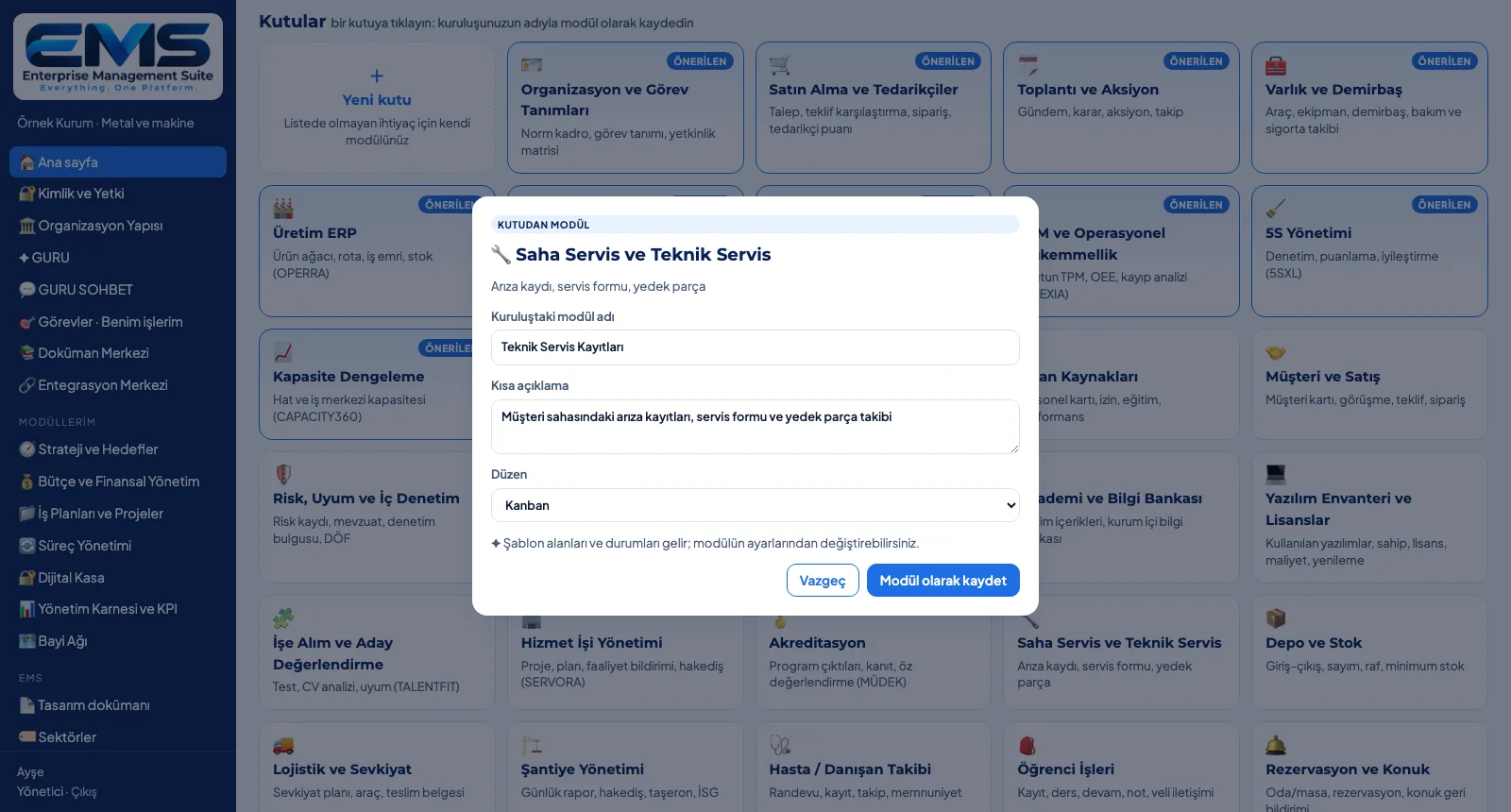
Every box in the library is a module template. Clicking a box lets you set the module name used in your organization, a short description and a layout, and save it as a module; the box's template fields and statuses come with it. For a need that isn't listed, you define a new box for your organization. Each module's name, fields and statuses can be changed later in its settings.
- Module from a box: name in your organization, short description, layout
- Layouts: list + form, kanban, calendar, form + approval flow, document library
- Template fields and statuses come with the box (e.g. strategy: perspective, target value, actual)
- New box: icon, name, purpose, fields (text · number · date · choice), statuses; open as a module right away
- Module settings: name, description, layout, fields, statuses; remove the module (the box returns to the library)
Module Records: List and Kanban
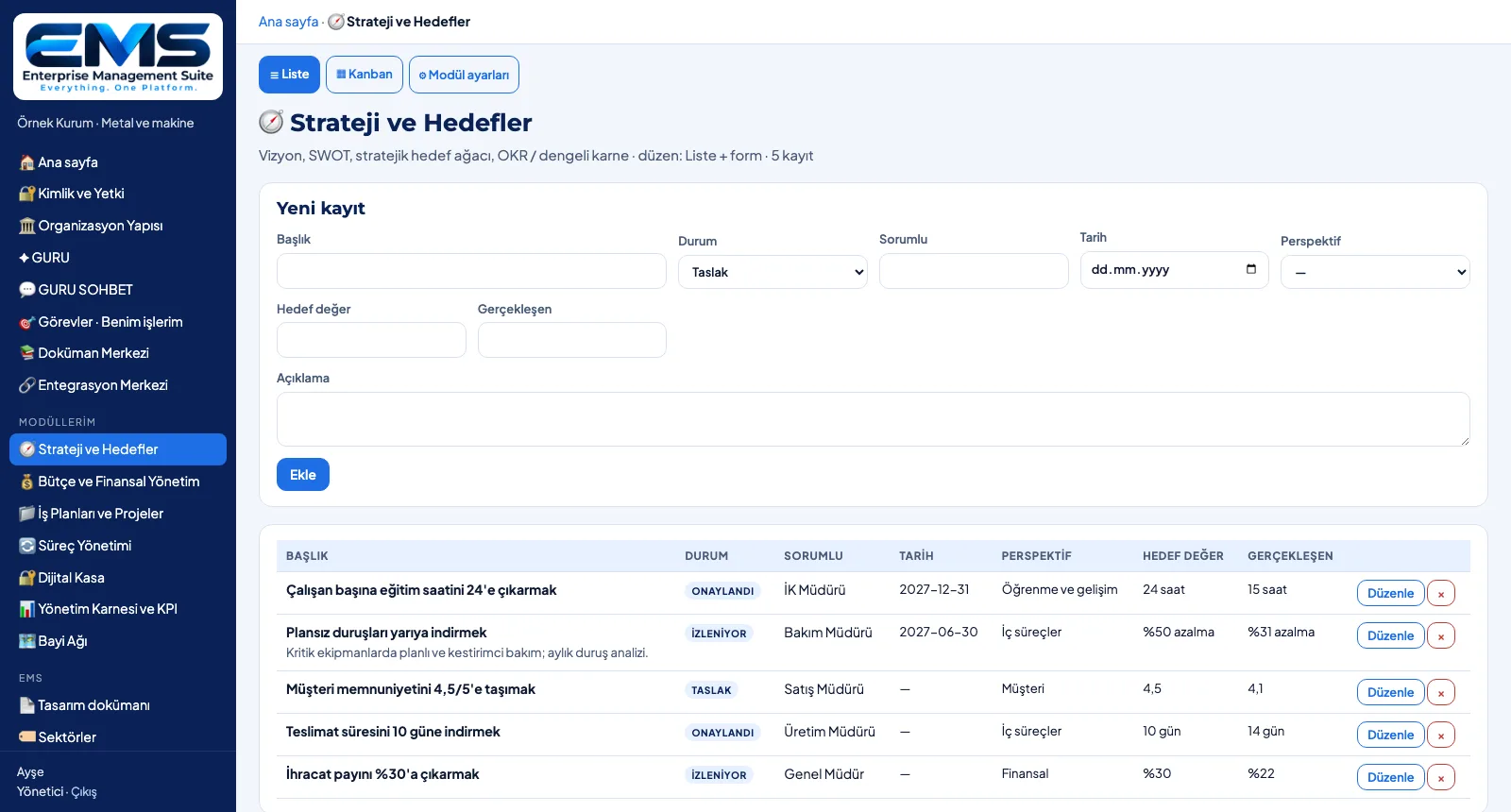
Every opened module lives on its records. Besides title, status, owner, date and description, the record form holds the module's template fields (text, number, date, choice). The list view shows the fields as columns; the kanban view groups records in status columns and moves a record to another status in one click.
- Record form: title, status, owner, date, description + module fields
- Field types: text, number, date, choice list
- List view: fields as columns, edit and delete
- Kanban view: status columns, counts, move a record to another status
- Record count on the module box; kanban-layout modules open in kanban
Organizations, Industries and Access
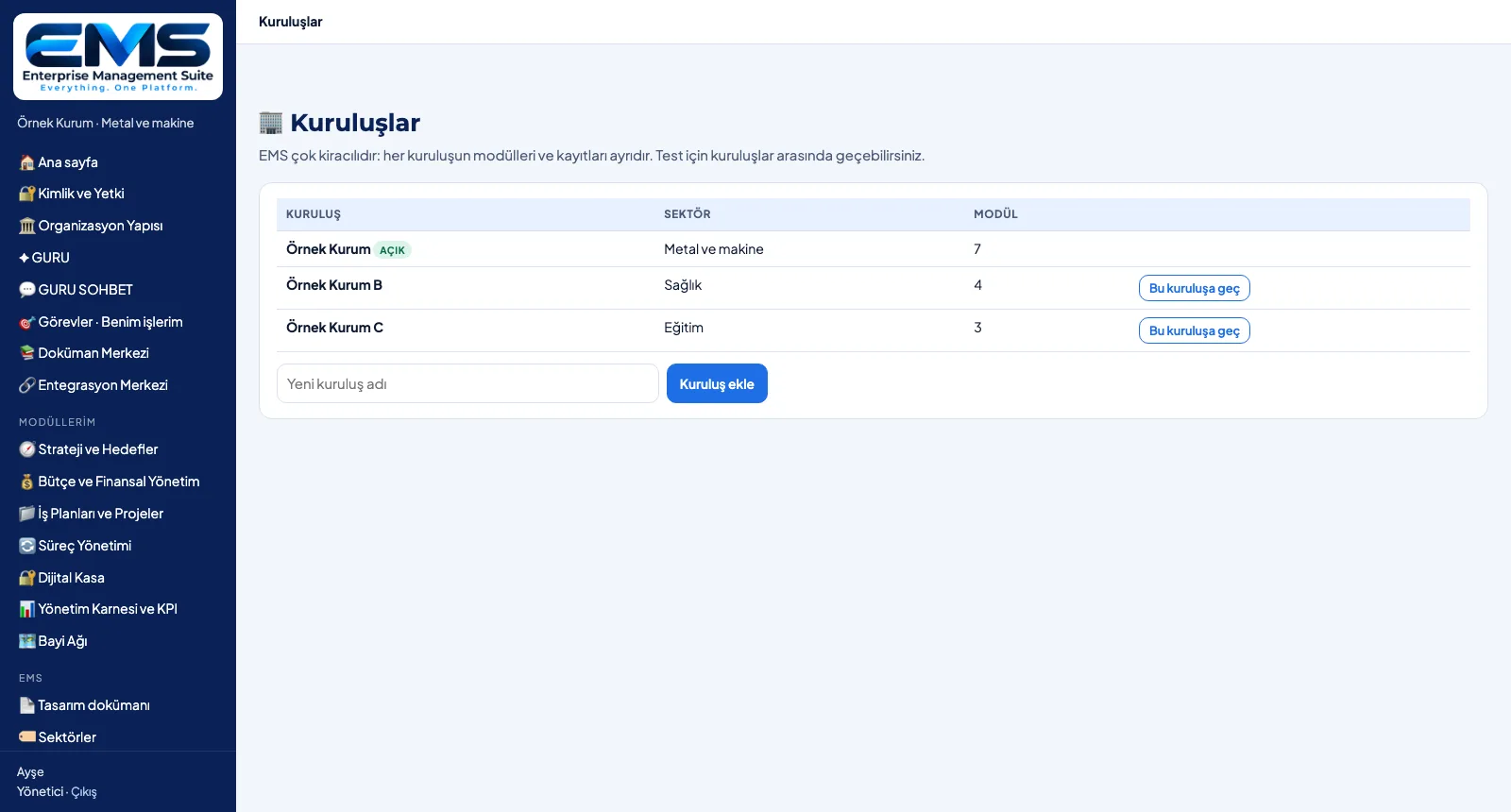
EMS is multi-tenant: each organization's modules, boxes and records are kept separate; the administrator adds new organizations and switches between them. The EMS administrator maintains the industry list: adds industries, deactivates them and ticks the modules each industry recommends. Sign-in is single sign-on with no separate password; access has three levels.
- Organizations: list, industry, module count; add an organization, switch to it
- Industry management: add, deactivate, choose the recommended standard modules and boxes
- Single sign-on, no separate password; access: view (read-only) · edit · manage
- Change log: setup, opened / removed modules, added boxes — who and when
- Settings: the GURU AI key is managed by the administrator only
GURU AI
GURU is the AI layer of EMS. The setup advisor looks at the chosen industry and the open modules and points things out: how many modules were recommended and not yet opened, missing links (e.g. processes are open but job descriptions are not), modules that have no records yet. When a new box is created, GURU suggests fields and statuses from its description; the suggestion only fills in the form — saving is the user's decision.
- Setup advisor: recommended / unopened module counts, missing links, modules without records
- The advisor is rule-based and works without an AI key
- Field suggestion: 3–6 fields and 3–5 statuses from the new box's name and purpose
- With Claude when an AI key is set, otherwise by keyword matching; the source is shown in the form
- Human approval: the suggestion fills the form, saving is the user's call
See your organization in EMS
Write to us for a live walkthrough on a sample setup for your industry.